Hosting Customer Workflows
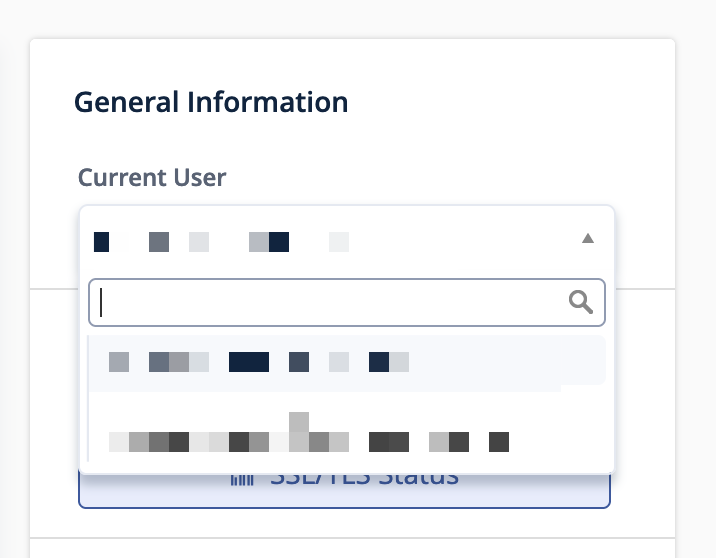
Note that you can complete the below when signed in as either a customer or a reseller. If you are signed in as a reseller, select your customer domain from the Current User dropdown.
Adding a Site
The root (apex) domain will likely meet the 80% use case. Getting a site live can be achieved using a number of routes:
- WordPress Toolkit
- Git
- File Manager
We leave this an an exercise for the developer/web admin.
Adding a Subdomain
Subdomains can also be hosted.
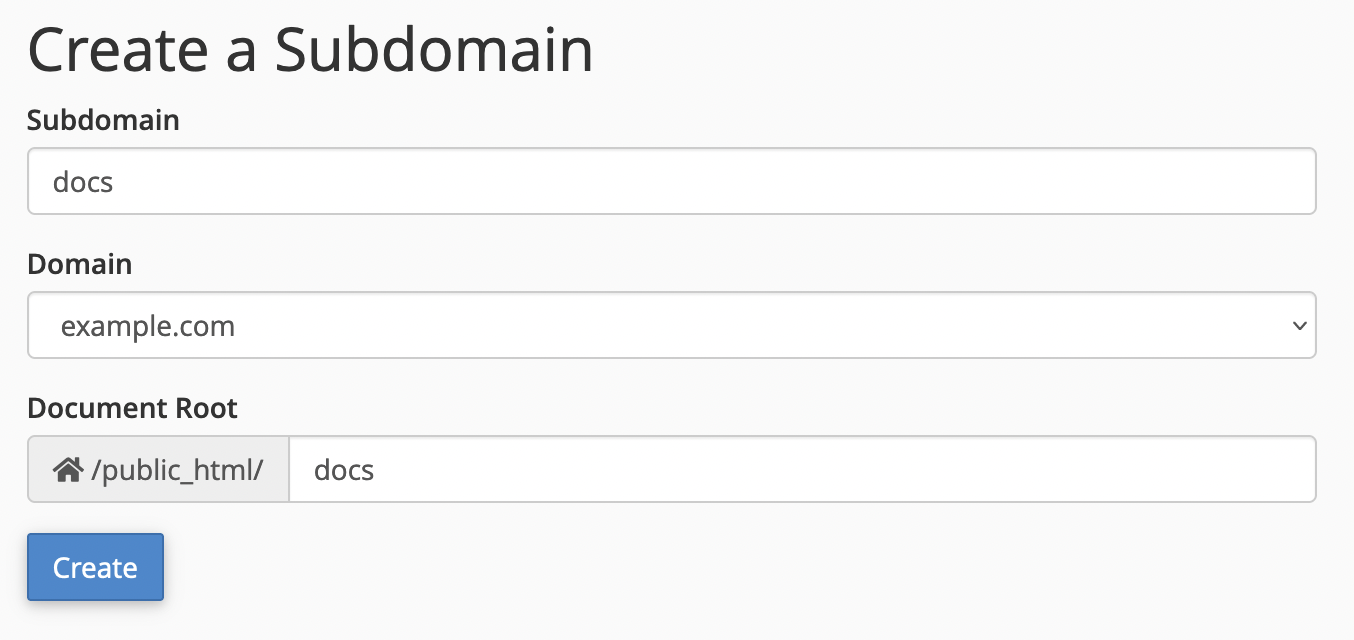
Navigate to cPanel > Tools > Domains > Subdomains.
Complete the dialog with the subdomain requred.
Site content can be loaded using any of the methods listed in Adding a Site
Example
We host website for our client Example.com, but they would also like their documentation site docs.example.com hosted. Enter docs as the subdomain value and click Create.
Addon Domains
It is entirely possible that a client may have multiple domains. Given the use case, it may make sense to consolidate them all under a single customer account.
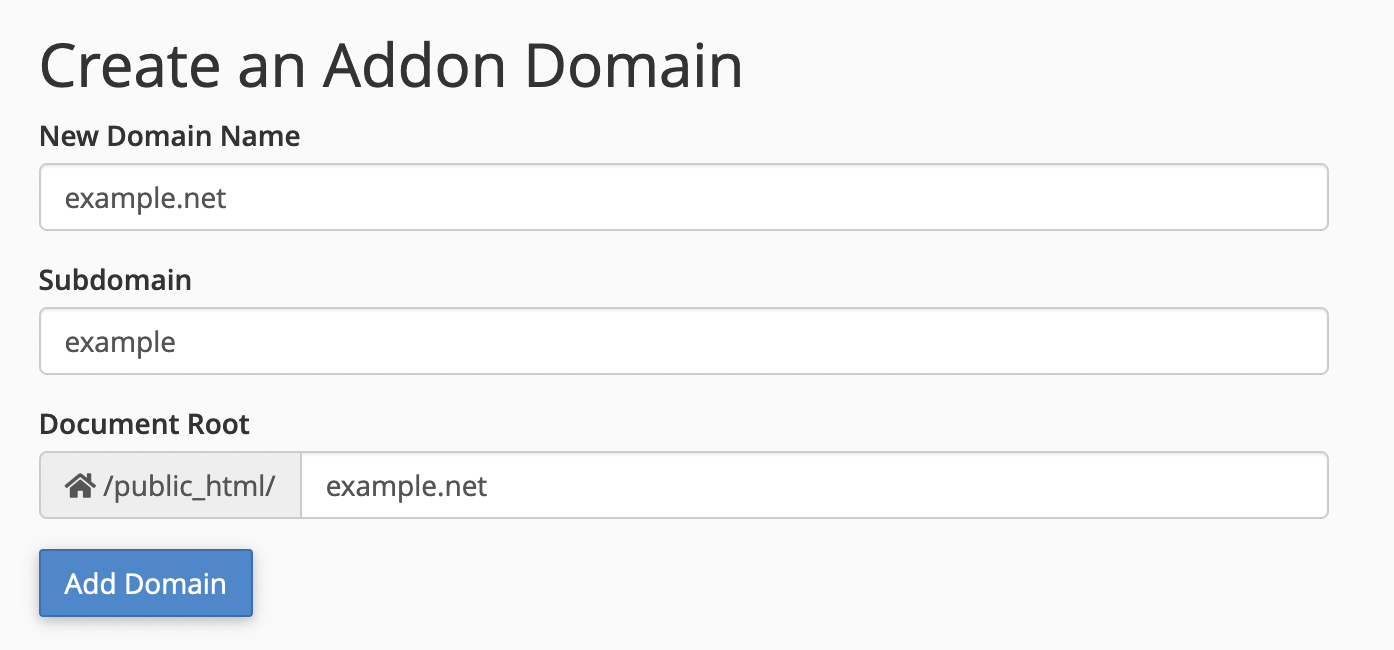
Navigate to cPanel > Tools > Domains > Addon Domains.
Complete the dialog with the domain name you with to add and click Add Domain.
Site content can be loaded using any of the methods listed in Adding a Site
Example
Our client Example.com would also like us to host their example.net domain.
Securing a Site With SSL
Clients can choose from one of two types of SSL certificate:
- Bring your own: the classic SSL experience for the cypto pedant.
- Fully automated via Let's Encrypt: a modern SSL experiencce for the crypto Luddite .
Bring Your Own
Navigate to cPanel > Tools > Security > SSL/TLS.
From here you can manage private keys, generate a certificate singing request (CSR), manage SSL certificates, and manage SSL sites. The only closer you can get to the metal than this is by running openssl from the shell.
Fully Automated
Navigate to cPanel > Tools > Security > Let's Encrypt SSL.
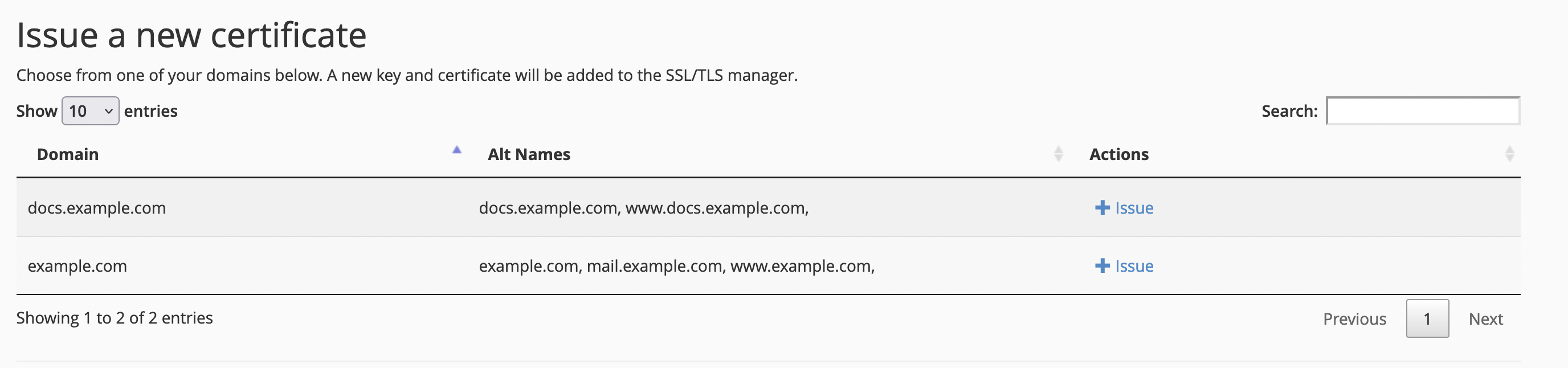
You will be presented with a list of domains currently covered by Let's Encrypt certificates and a second list of domains you can issue certificates for.
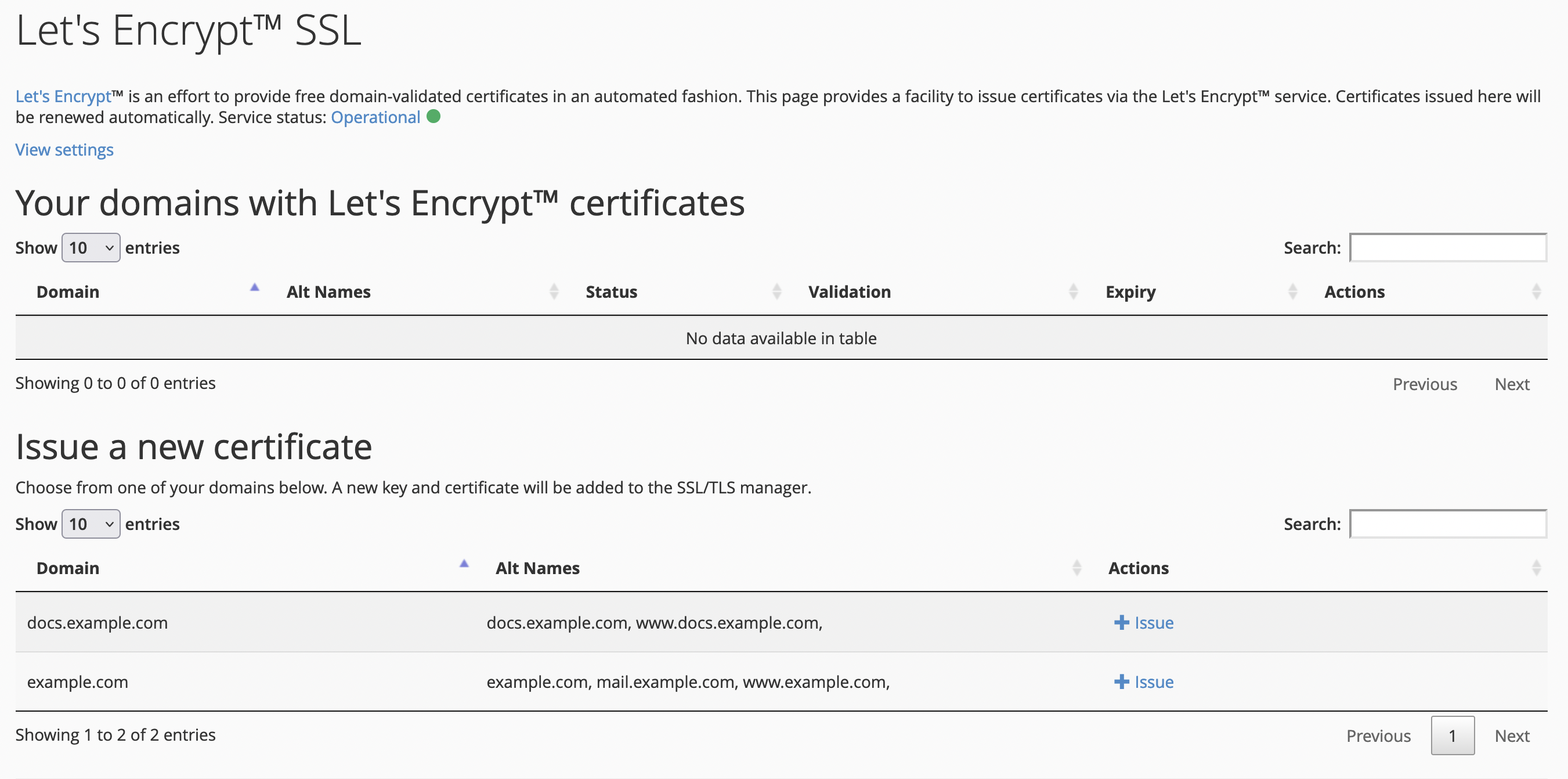
Find the domain you wish to issue a new certificate for under the Issue a new certificate list. Click the Issue button to proceed.
In the next screen, you will be presented with a list of domains to include or exclude. For root (apex) domains, you will likely want to include both the root and the www alias. For subdomains you will likely only want to include the sub and not the sub alias.
Danger
Only select domains and subdomains that have DNS records pointing to the hosting server IP address. Failure to do so will cause the SSL certificate generation to fail.
Fail
The only validation method supported on this system is http-01. Choosing dns-01 will cause certificate generation to fail. This also means that wildcard certificates are NOT supported either.
Example
Our client Example.com has asked us to secure docs.example.com for them.
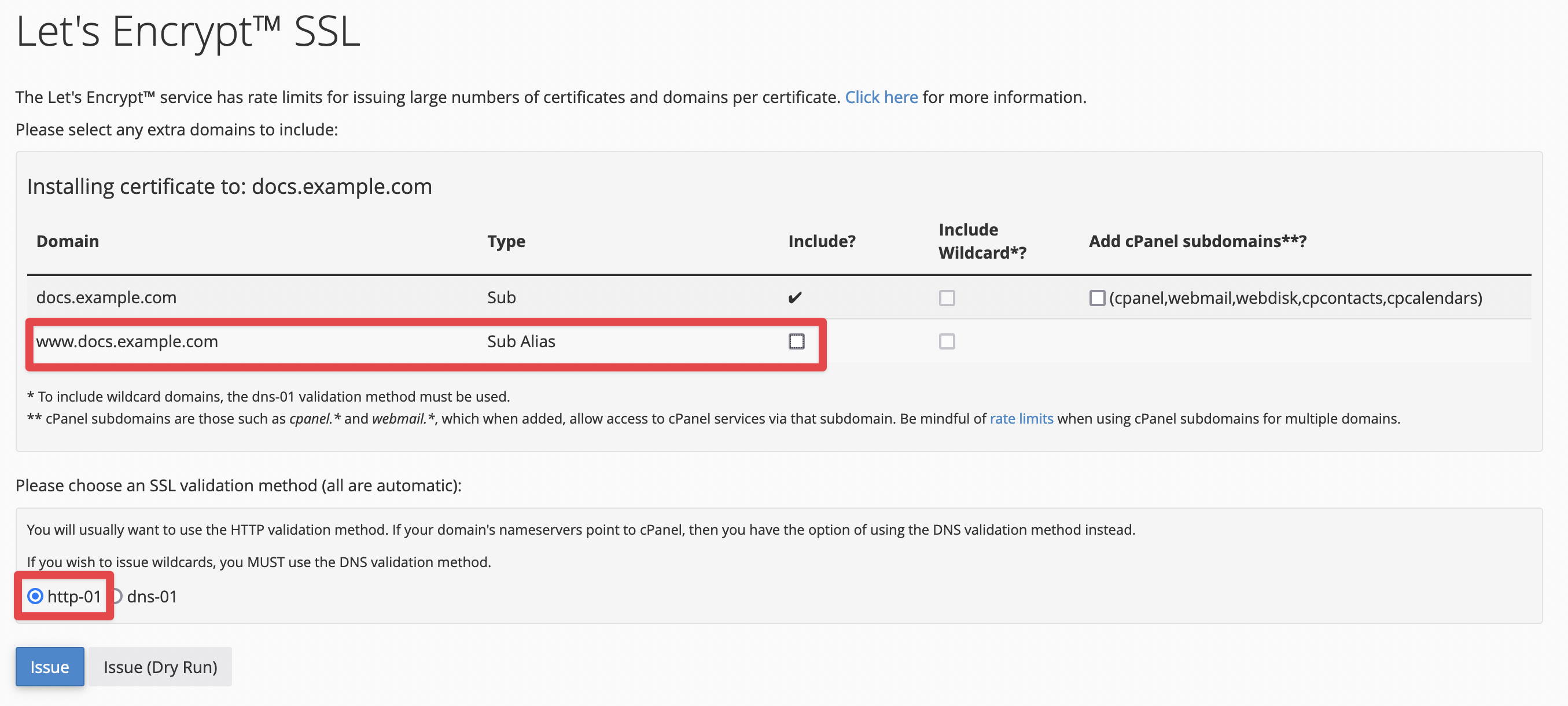
Note that we have excluded the sub alias above as we don't have a DNS record to cover that hostname. The cPanel subdomains are excluded for the same reason.